
Inventory
Everblue Dungeons Inventory Guide: Selling and Item Protection
Last updated:
Manage your Bag without losing useful gear. Find the right item, check its equipment state, and decide which extras to sell or save for weapon upgrades.
Open Bag, choose a category, and use Search Item or sorting to locate an item. Green check marks and equipment slots identify equipped gear. Lock items you want to keep before clearing space. Sell unwanted weapons, armor, or potions for Gold at the town’s Sell Items stall, or keep spare weapons for Merge to gain weapon XP.
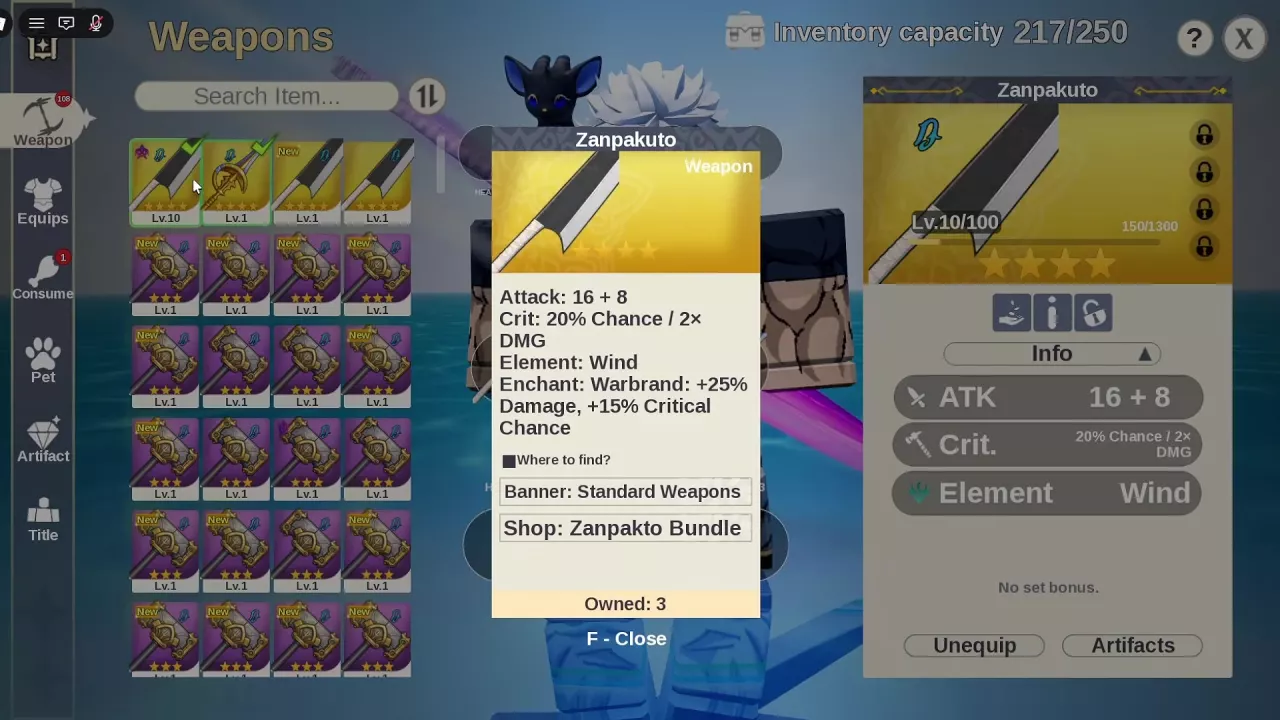
Find Items in Bag
- Open Bag from the top menu.
- Choose the category that matches your item.
- Use Search Item or the sorting control to narrow the list.
- Select an item to inspect its details and available actions.
| Bag category | What to look for |
|---|---|
| Weapon | Weapons. Use the weapon directory to look up elements, skills, and sources. |
| Equips | Armor and outfits. See armor assignment when you want to assign a piece to a weapon. |
| Consume | Potions, food, keys, and enhancement or crafting materials. See potions and hotbar setup for potion use. |
| Pet | Pets. See equipping and feeding pets for their setup and growth. |
| Artifact | Artifacts. See artifact assignment and set bonuses for weapon assignment and combinations. |
| Title | Titles. Select one to inspect its effect, unlock requirement, and source. |
For a weapon, open Info and the expanded information card to read its attributes, enchant, and listed acquisition sources. Read the weapon’s level and enchant alongside its stats when comparing copies.
Recognize Equipped and Selected Items
Check the green check marks on item cards together with the equipment slots to see what is equipped. For weapons, Unequip indicates that the selected weapon is equipped; use Equip on the weapon you want to put into use.
Selecting or hovering over another item lets you inspect it without changing your equipment. A detail panel or tooltip alone does not mean that item has replaced your current weapon.
Press F to close an expanded weapon information card.
Protect Useful Gear and Read Capacity
Lock items you want to keep. Locking protects them from selling and merging. Before selecting unwanted gear, set aside your main weapons, useful enchanted copies, and backup weapons you still plan to use. A duplicate name alone is not a reason to discard a copy with an enchant you want.
The inventory counter reads used slots / total capacity. For example, 147/250 means 147 used slots out of that inventory’s 250-slot capacity. Use the total displayed in your own Bag when planning space.
An INVENTORY SLOT EXPANSION game pass is available for additional capacity; see the game pass directory. To clear existing stock, choose between selling and merging in the next section.
Sell for Gold or Merge for Weapon XP
Choose according to the resource you need:
| Option | Items used | What you receive | When to choose it |
|---|---|---|---|
| Sell Items | Unwanted weapons, armor, or potions | Gold | You need currency for purchases such as potions. |
| Merge | Spare weapons | XP for the weapon you keep | You want to level a chosen weapon. |
Sell unwanted items
- Approach the Sell Items stall in town, beside Merge.
- Press E at the Sell Items prompt.
- Select the unwanted weapons, armor, or potions in the selling interface and sell them for Gold.
Keep spare weapons for upgrades
If weapon levels are your priority, reserve expendable weapons for the nearby Merge service. Select the weapon you want to keep as the upgrade target, then review the selected material weapons and the XP and level preview before committing. The material weapons are consumed.
Follow the weapon upgrade guide for the full Merge procedure. If you need Gold while saving weapons for upgrades, see the other Gold sources.